Calendar timeline
The calendar is a colour-coded grid of rooms down the side and dates across the top. One glance tells you who's staying where, what's free, and what needs a room assigned.
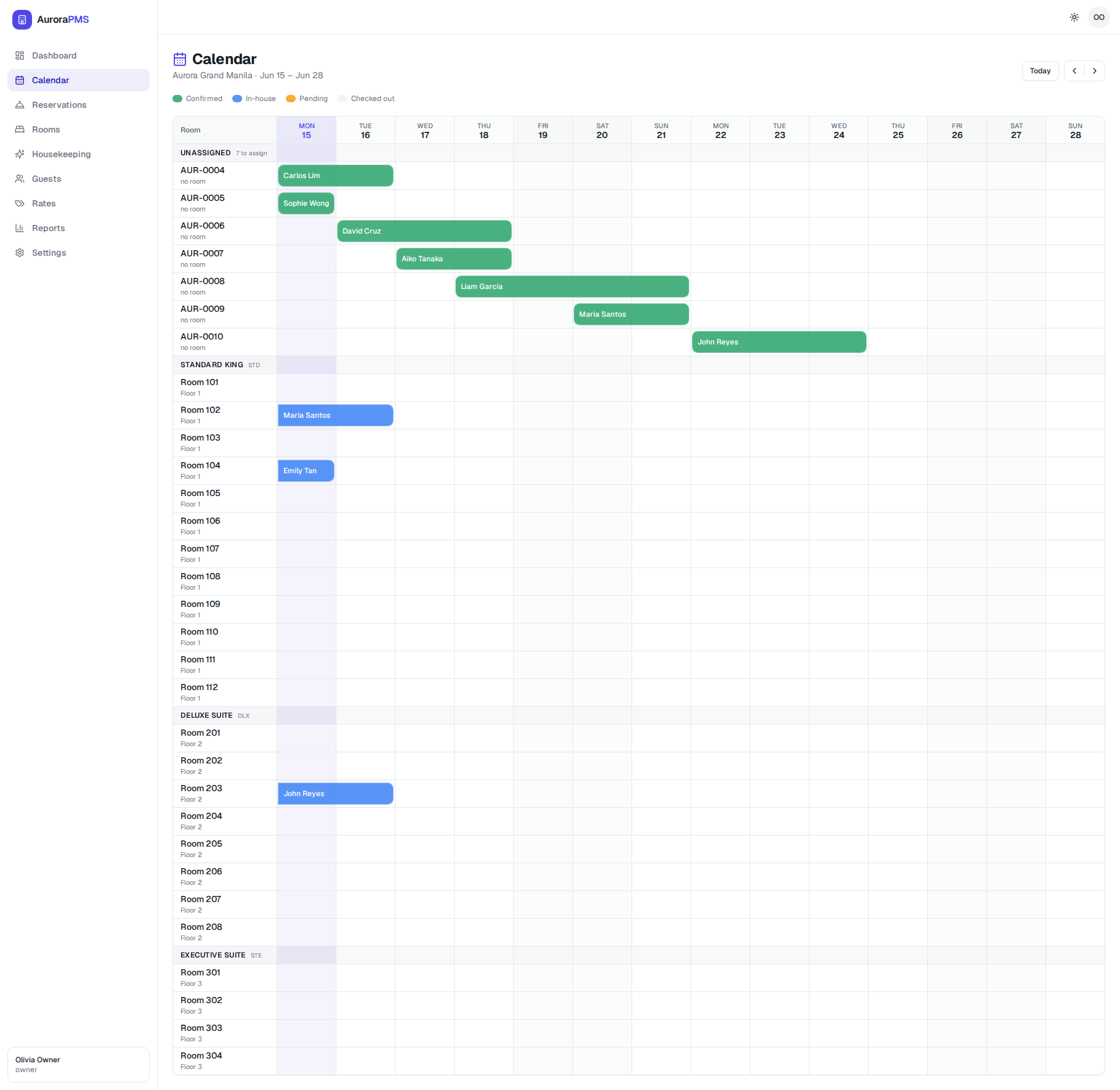
The legend
Each bar's colour shows the reservation's status:
- Confirmed — booked, not yet arrived.
- In-house — checked in and staying now.
- Pending — awaiting confirmation.
- Checked out — stay complete.
The "Unassigned" row
New bookings that don't yet have a specific room sit in the Unassigned section at the top (the header shows how many are "to assign"). Assign them a room here, or let Aurora pick one automatically at check-in.
Move around the calendar
- 1
Open Calendar from the sidebar. It opens on the current week, with today's column highlighted and the date range shown (e.g. Jun 15 – Jun 28).
- 2
Use the ‹ and › arrows (top-right) to move to the previous or next week.
- 3
Select Today to jump straight back to the current week.
- 4
Click a reservation bar to open its detail and folio, where you can modify, assign a room, check in or cancel.
Expected result
You can see two weeks of occupancy at once, spot empty rooms (gaps in a row), and act on any booking with a single click.