Settings & admin
Property settings
Everything about your property lives under Settings: your core property details, the channel-manager connection that keeps your OTAs in sync, and the webhook URL that lets bookings flow in automatically.
Open Settings
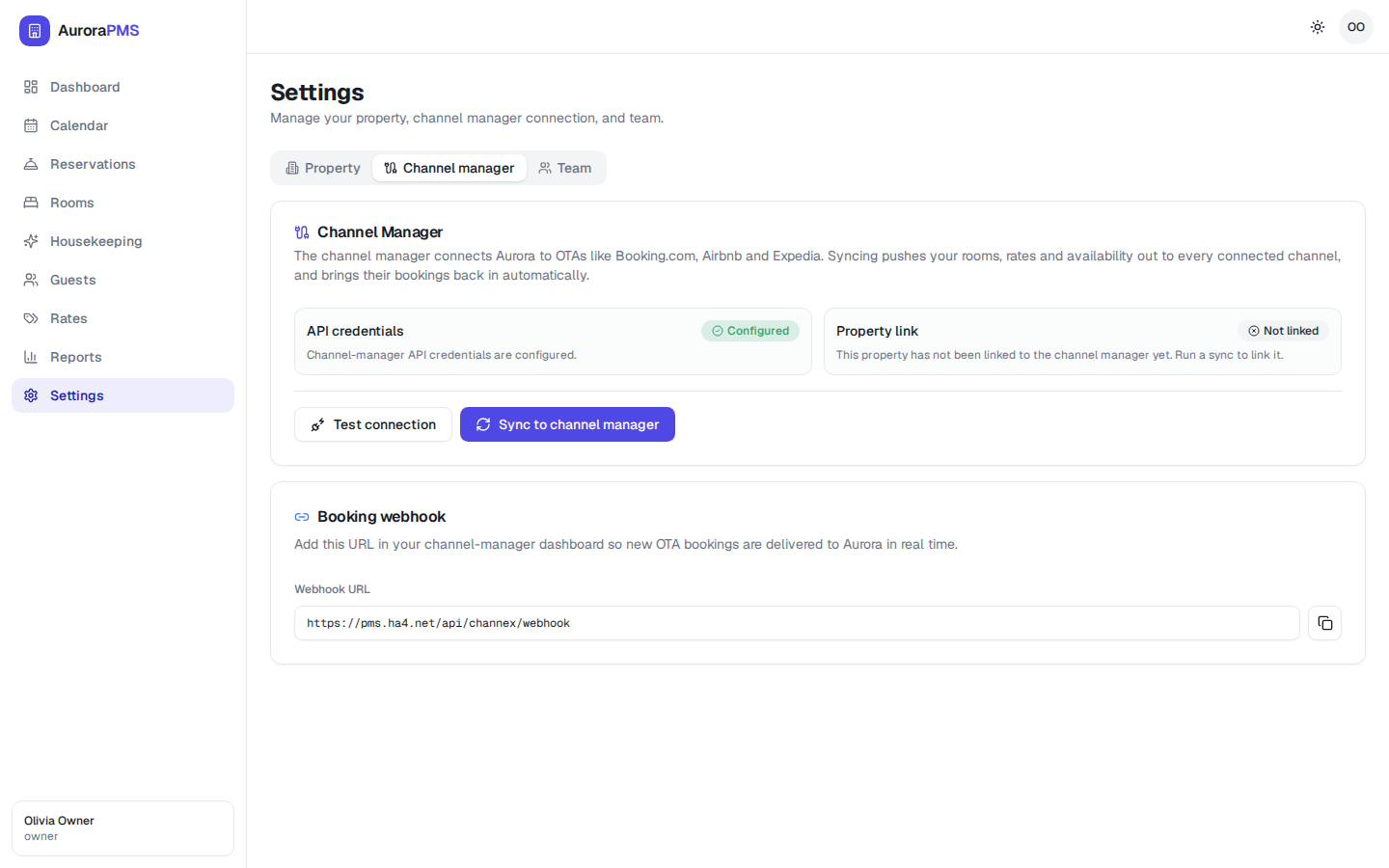
Click Settings in the sidebar. You’ll see three tabs: Property, Channel manager and Team.
Property details
- 1Open the Property tab. Review your property name, property code, city, currency and timezone.
- 2Check they're correct. These values appear on your booking engine and on guest confirmations, so accuracy matters.
- 3Confirm your timezone. The timezone drives arrival and departure times and your reports, so make sure it's right.
Channel-manager connection
The Channel manager tab is where your OTA distribution is connected and monitored.
- 1Open the Channel manager tab. See whether the connection is active and when it last synced.
- 2Use “Sync to channel manager”. Push your current rates and availability to every connected channel on demand.
- 3Reconnect if needed. If the status shows an issue, re-enter the channel credentials and sync again.
Your webhook URL
A webhook URL is the address that channels send new bookings to, so they land in Aurora automatically. You’ll find it in the channel-manager settings.
Copy the webhook URL when a channel or integration asks for a “notification” or “callback” address. Once set, OTA bookings arrive in Aurora within seconds. See How OTA bookings arrive.
Your property details are accurate, the channel-manager connection shows as active and recently synced, and your webhook URL is in place so bookings flow in automatically.