Reservations
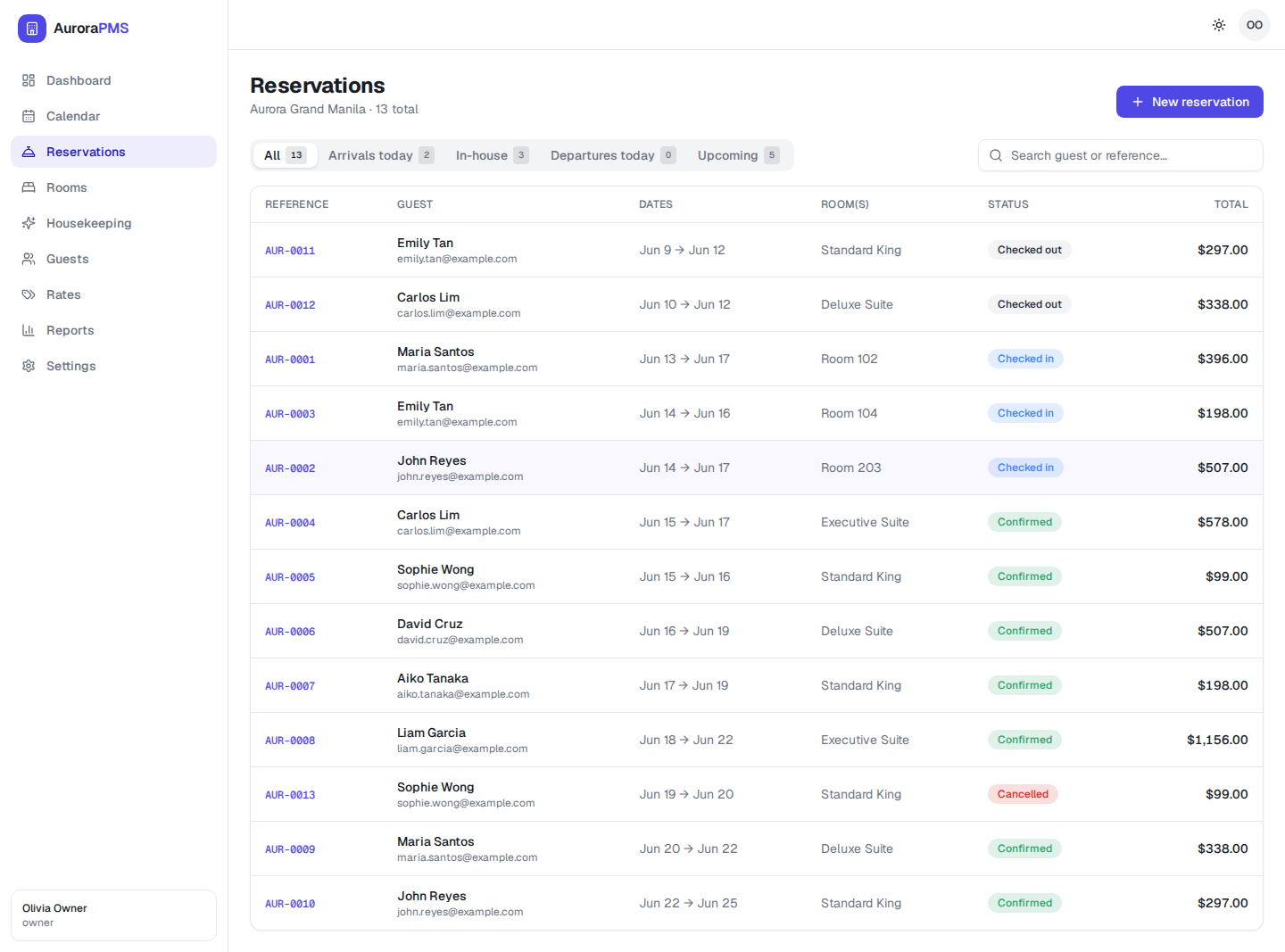
Create a booking in under a minute, then modify or cancel it whenever plans change. This page covers the whole life of a reservation and the folio that tracks its charges.
Create a reservation
- 1
Open Reservations from the sidebar and select New reservation (top-right). You can also start one from the dashboard.
- 2
Pick the check-in and check-out dates. Aurora shows the nights and only offers room types that are available.
- 3
Choose a room type (e.g. Standard King, Deluxe Suite, Executive Suite).
- 4
Choose a rate plan. The nightly price and the folio total update to match.
- 5
Add the guest — search for an existing profile or enter their name and email to create a new one.
- 6
Review the total and save. The reservation gets a reference like AUR-0014 and a Confirmed status.
Expected result
The booking appears in the Reservations list and on the calendar (as "unassigned" until a room is allocated), and it shows up in the dashboard's recent activity.
Modify a reservation
- 1
In the Reservations list, find the booking — use the search box (by guest or reference) or a tab — and select its row to open the reservation detail.
- 2
Edit what changed — dates, room type or rate plan. Aurora re-checks availability and recalculates the folio.
- 3
Save. The new dates and total update everywhere, including the calendar.
Cancel a reservation
- 1
Open the reservation detail and select Cancel.
- 2
Confirm. The status changes to Cancelled, the room frees up on the calendar, and the booking stays on record for your reports.
The reservation detail & folio
Opening a reservation shows everything in one place:
- Guest & stay — who's booked, the dates, room type, rate plan and the assigned room (once allocated).
- Status — Confirmed → Checked in → Checked out, or Cancelled.
- Folio — the running bill: room charges per night plus any extras, with the total. It's what you see in the "Total" column of the list.
The folio is closed when the guest checks out — see Check-in & check-out.