Distribution
Connecting an OTA channel
Connect a booking channel so it sells your rooms automatically. You'll add the channel's credentials, match your room types and rate plans to its listings, then go live with a first sync.
Before you start
Have your channel API credentials ready (an API key or property/account ID from the channel), and make sure your room types and rate plans already exist in Aurora. New to setup? See Property setup first.
1 · Add the channel credentials
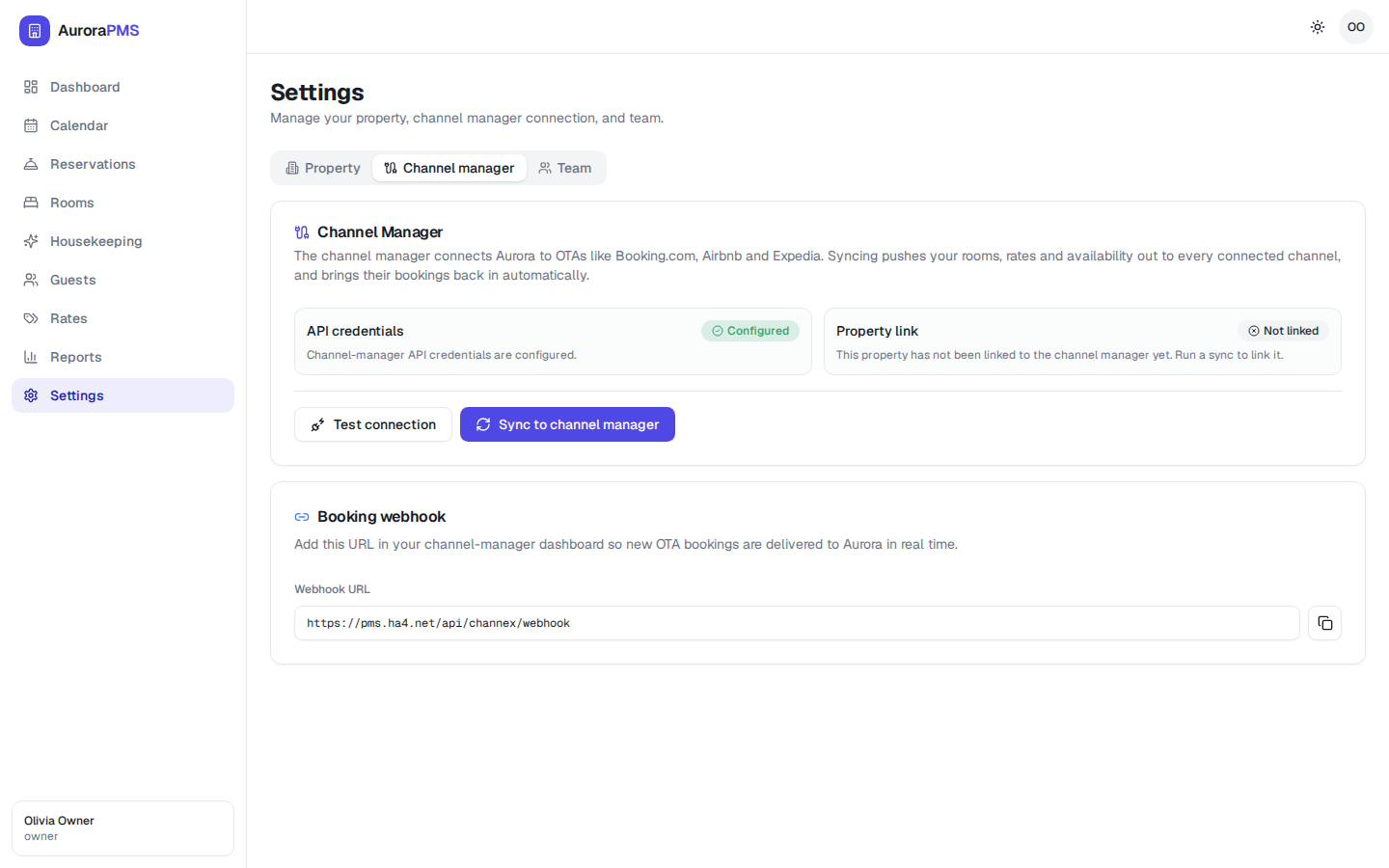
- 1Open Settings → Channel manager. Go to Settings and select the Channel manager tab.
- 2Choose the channel to connect. Pick the OTA you want to add, such as Booking.com, Airbnb or Expedia.
- 3Paste the API credentials. Enter the API key or property ID provided by the channel, then save to establish the connection.
2 · Map room types & rate plans
Mapping tells Aurora which of your rooms equals which listing on the channel, so prices and availability land in the right place.
- 1Match each room type. Pair every Aurora room type (Deluxe Suite, Standard King…) with the matching room on the channel.
- 2Match each rate plan. Link your rate plans (Best Available Rate, Non-Refundable) to the channel's equivalent rates.
- 3Leave nothing unmapped. Any room type or rate plan you skip won't sell on that channel, so map everything you want distributed.
3 · Go live
- 1Run the first sync. Use Sync to channel manager to push your current rates and availability to the new channel.
- 2Check the connection status. Confirm the channel shows as active and recently synced.
- 3Verify on the channel. Spot-check a date on the channel's own extranet to confirm your prices and availability look right.
Expected result
The new channel is connected, your room types and rate plans are mapped, and your live rates and availability are showing on it. New bookings from the channel will now flow straight into Aurora.