Rates & availability
Rate plans & the rate grid
Set your prices for the next two weeks at a glance. The rate grid shows every room type and rate plan down the side and 14 days across the top — tap any cell to change a price, and it saves instantly.
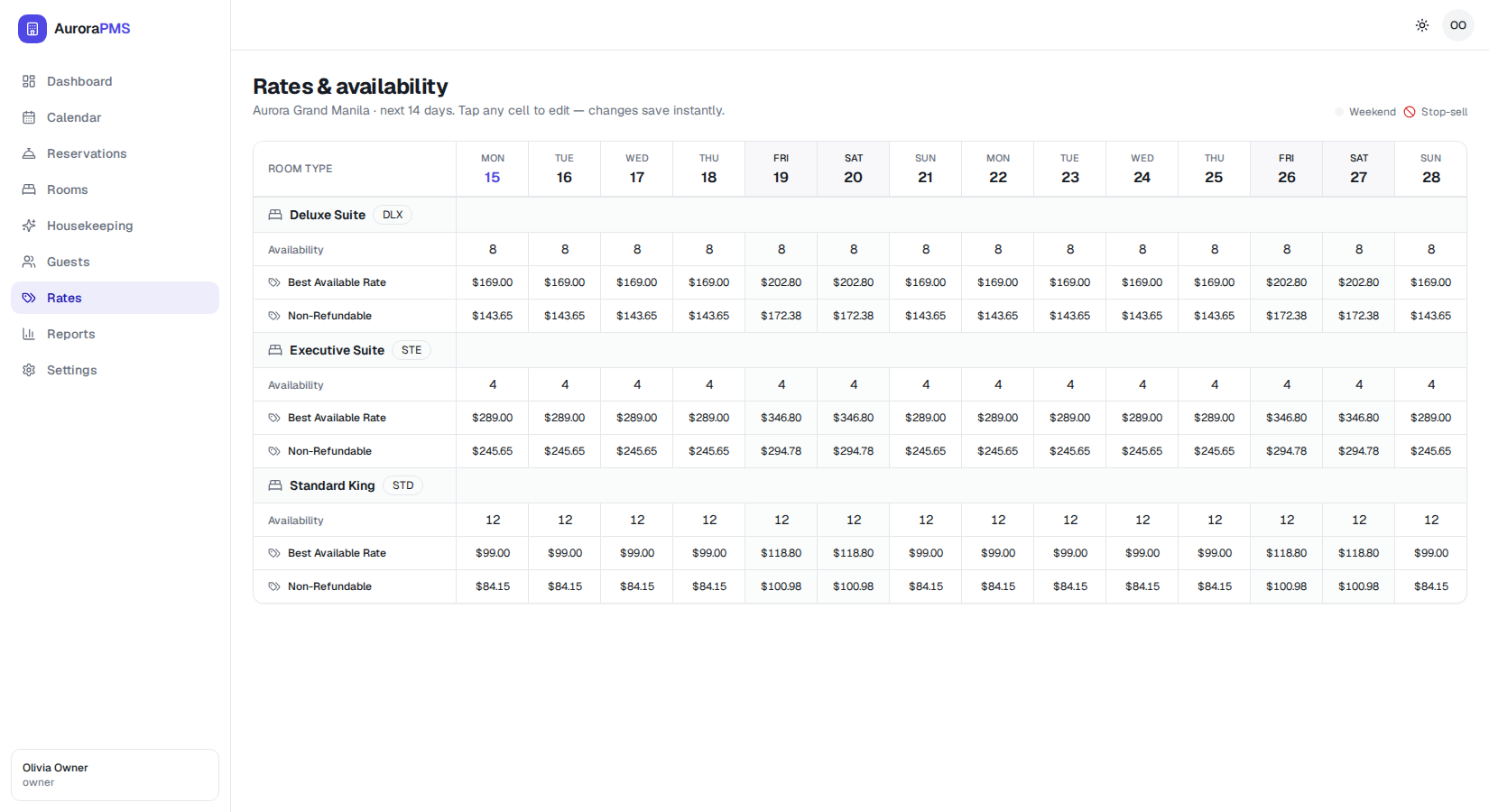
Read the rate grid
Open Rates from the left menu. Each room type (Deluxe Suite, Executive Suite, Standard King…) has a block with its Availability row plus one row per rate plan, such as Best Available Rate and Non-Refundable. The columns are the next 14 dates; weekend days are tinted so they are easy to spot.
- 1Open Rates. Click Rates in the sidebar to load the grid for your property and the next 14 days.
- 2Find the room type. Scroll to the room type you want to price, for example Deluxe Suite.
- 3Read across the dates. Each column is a date. The Availability row shows rooms left to sell; the rate-plan rows show the nightly price for that day.
Edit a nightly rate
- 1Tap the rate cell. Click the price for the room type, rate plan and date you want to change.
- 2Type the new price. Enter the nightly amount, for example
189.00. - 3Press Enter to save. The cell saves instantly and the new price is what guests and your connected channels will see.
Rate plans like Non-Refundable are often a percentage of your Best Available Rate. When you change the parent rate, Aurora recalculates the derived plans for that date automatically.
Set weekend pricing
Charging more on Friday and Saturday is just a few edits. The weekend columns are tinted, so you can move along the row and update only those dates.
- 1Spot the weekend columns. Friday and Saturday are highlighted in the date header.
- 2Raise those cells. Tap each weekend cell for the room type and enter the higher weekend rate.
- 3Repeat for each rate plan. Update the weekend price on every rate plan you sell, so the uplift applies consistently.
Your new prices are live for the chosen dates. They appear on your direct booking engine immediately and sync to your connected booking channels within moments.